下载安装包#
Redis(Remote Dictionary Server ),即远程字典服务,是一个开源的使用 ANSI C 语言编写、支持网络、可基于内存亦可持久化的日志型、Key-Value数据库,并提供多种语言的API。
Redis 是没有 Windows 平台下的官方支持版本的。Redis 官方不建议在 Windows 下使用,所以官网没有 Windows 版本可以下载;可以下载在 github 上的ServiceStack 提供的非官方 Windows 版本的 Redis 但不推荐,因为:
- 该版本并不是官方支持的,缺少官方支持在使用上可能会出现很多问题
- Redis的最新版本与 Windows 版本不同步,Redis官网版本早于Redis中文网
所以不考虑Windows下版本安装,直接选择Linux下版本安装
Linux安装程序分为两种
- 手动安装
- yum安装
如果是手动下载,需要将文件上传到Linux系统中
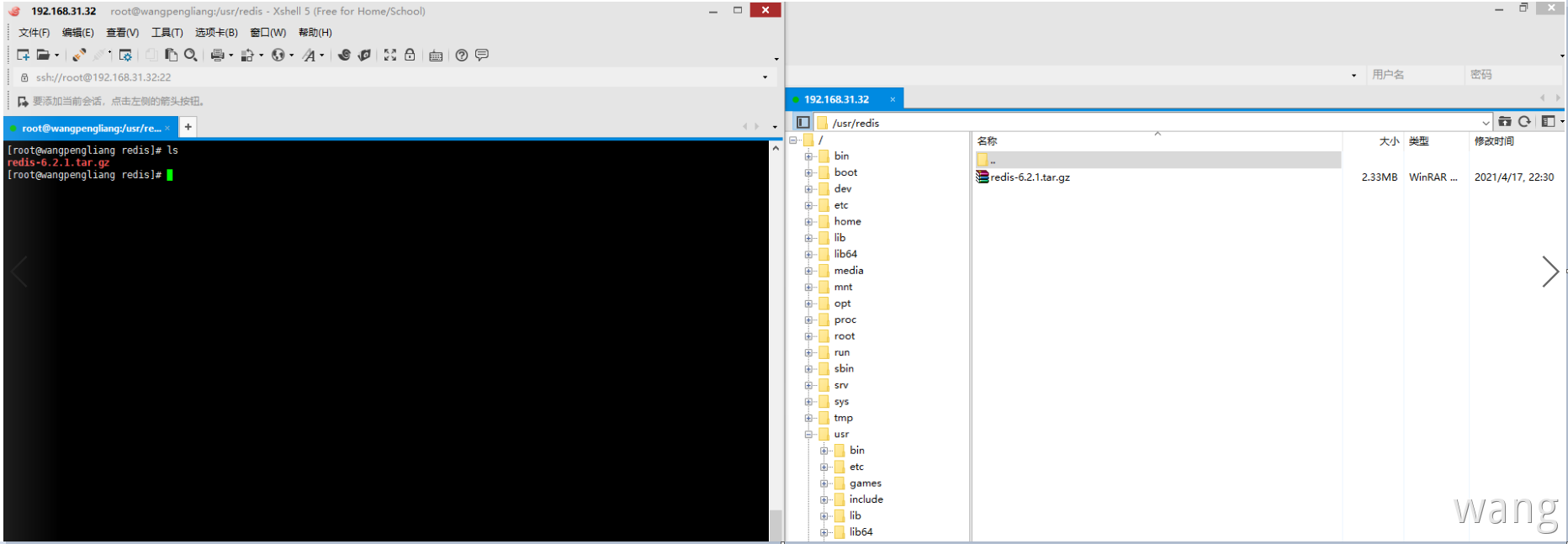
解压文件
tar -xvf Redis-6.2.1.tar.gzRedis是C语言开发,安装Redis需要先将Redis的源码进行编译,编译依赖gcc环境。因此需要安装gcc,安装过程中有提示时,输入Y即可。(make命令必须在Redis解压后的程序目录下执行)
Centos7安装有默认gcc环境,默认4.8.5版本!编译 Redis-6.x,要求 gcc5.3以上 编译器,否则会遇到大量的错误。主要原因是从 Redis-6.x 开始的多线程代码依赖C标准库中的新增类型 _Atomic 。但注意 gcc 从 4.9 版本才开始正式和完整地支持 stdatomic(gcc-4.8.5 部分支持)。Centos7默认的 gcc 版本为:4.8.5 < 5.3 无法编译
Gcc升级#
参考 :Centos7升级gcc版本
查看gcc版本#
[root@wangpengliang Redis]# gcc -v编译Redis#
进入 Redis 程序目录
cd /usr/Redis/Redis-6.2.1Make:下载环境并编译 Redis 程序
[root@localhost Redis-6.2.1]# make  install #将Redis安装在Linux默认位置:/usr/local/bin
或者(推荐)
[root@localhost Redis-6.2.1]# make  install  PREFIX=/usr/Redis/Redis-6.2.1/installpackage #将Redis安装在指定位置
安装完成查看文件列表
[root@wangpengliang bin]# cd /usr/Redis/Redis-6.2.1/installpackage/bin
[root@wangpengliang bin]# ls
Redis-benchmark  Redis-check-aof  Redis-check-rdb  Redis-cli  Redis-sentinel  Redis-server
[root@wangpengliang bin]# ll
总用量 21940
-rwxr-xr-x. 1 root root  5675824 4月  18 01:32 Redis-benchmark
lrwxrwxrwx. 1 root root       12 4月  18 01:32 Redis-check-aof -> Redis-server
lrwxrwxrwx. 1 root root       12 4月  18 01:32 Redis-check-rdb -> Redis-server
-rwxr-xr-x. 1 root root  5881760 4月  18 01:32 Redis-cli
lrwxrwxrwx. 1 root root       12 4月  18 01:32 Redis-sentinel -> Redis-server
-rwxr-xr-x. 1 root root 10904032 4月 18 01:32 Redis-server配置Redis#
复制 Redis 核心配置文件,文件在安装命令目录中(默认位置在 /usr/local/bin )。我在安装时选择了安装在指定位置( /usr/Redis/Redis-6.2.1/installpackage ),Redis配置文件需要放在安装目录下。(Redis.conf 配置文件在 Redis 程序目录中)
# 进入Redis安装目录/bin
[root@wangpengliang bin]# cd /usr/Redis/Redis-6.2.1/installpackage/bin
# 创建目录conf:用于存放配置文件
[root@wangpengliang bin]# mkdir conf
# 查看创建结果
[root@wangpengliang bin]# ll
总用量 21940
drwxr-xr-x. 2 root root        6 4月  18 01:43 conf
-rwxr-xr-x. 1 root root  5675824 4月  18 01:32 Redis-benchmark
lrwxrwxrwx. 1 root root       12 4月  18 01:32 Redis-check-aof -> Redis-server
lrwxrwxrwx. 1 root root       12 4月  18 01:32 Redis-check-rdb -> Redis-server
-rwxr-xr-x. 1 root root  5881760 4月  18 01:32 Redis-cli
lrwxrwxrwx. 1 root root       12 4月  18 01:32 Redis-sentinel -> Redis-server
-rwxr-xr-x. 1 root root 10904032 4月  18 01:32 Redis-server
# 复制Redis程序目录中的配置文件放入到Redis安装目录下conf目录中
[root@wangpengliang bin]# cp /usr/Redis/Redis-6.2.1/Redis.conf /usr/Redis/Redis-6.2.1/install
package/bin/conf/[root@wangpengliang bin]# ll
总用量 21940
drwxr-xr-x. 2 root root       24 4月  18 01:44 conf
-rwxr-xr-x. 1 root root  5675824 4月  18 01:32 Redis-benchmark
lrwxrwxrwx. 1 root root       12 4月  18 01:32 Redis-check-aof -> Redis-server
lrwxrwxrwx. 1 root root       12 4月  18 01:32 Redis-check-rdb -> Redis-server
-rwxr-xr-x. 1 root root  5881760 4月  18 01:32 Redis-cli
lrwxrwxrwx. 1 root root       12 4月  18 01:32 Redis-sentinel -> Redis-server
-rwxr-xr-x. 1 root root 10904032 4月  18 01:32 Redis-server
# 进入Redis安装目录下conf目录
[root@wangpengliang bin]# cd conf
# 查看配置文件
[root@wangpengliang conf]# ll
总用量 92
-rw-r--r--. 1 root root 92222 4月 18 01:44 Redis.conf启动Redis#
- 进入
Redis安装目录bin - 使用命令启动
Redis服务(测试Redis服务会占用一个窗口)
# 在Redis安装目录下的bin目录中启动Redis服务并指定配置文件
[root@wangpengliang bin]# ./Redis-server conf/Redis.conf
20335:C 18 Apr 2021 01:51:48.190 # oO0OoO0OoO0Oo Redis is starting oO0OoO0OoO0Oo
20335:C 18 Apr 2021 01:51:48.190 # Redis version=6.2.1, bits=64, commit=00000000, modified=0,
 pid=20335, just started20335:C 18 Apr 2021 01:51:48.190 # Configuration loaded
20335:M 18 Apr 2021 01:51:48.191 * Increased maximum number of open files to 10032 (it was or
iginally set to 1024).20335:M 18 Apr 2021 01:51:48.191 * monotonic clock: POSIX clock_gettime
                _._
           _.-``__ ''-._
      _.-``    `.  `_.  ''-._           Redis 6.2.1 (00000000/0) 64 bit
  .-`` .-```.  ```\/    _.,_ ''-._
 (    '      ,       .-`  | `,    )     Running in standalone mode
 |`-._`-...-` __...-.``-._|'` _.-'|     Port: 6379
 |    `-._   `._    /     _.-'    |     PID: 20335
  `-._    `-._  `-./  _.-'    _.-'
 |`-._`-._    `-.__.-'    _.-'_.-'|
 |    `-._`-._        _.-'_.-'    |           http://Redis.io
  `-._    `-._`-.__.-'_.-'    _.-'
 |`-._`-._    `-.__.-'    _.-'_.-'|
 |    `-._`-._        _.-'_.-'    |
  `-._    `-._`-.__.-'_.-'    _.-'
      `-._    `-.__.-'    _.-'
          `-._        _.-'
              `-.__.-'

20335:M 18 Apr 2021 01:51:48.193 # WARNING: The TCP backlog setting of 511 cannot be enforced
 because /proc/sys/net/core/somaxconn is set to the lower value of 128.20335:M 18 Apr 2021 01:51:48.193 # Server initialized
20335:M 18 Apr 2021 01:51:48.193 # WARNING overcommit_memory is set to 0! Background save may
fail under low memory condition. To fix this issue add 'vm.overcommit_memory = 1' to /etc/sysctl.conf and then reboot or run the command 'sysctl vm.overcommit_memory=1' for this to take effect.20335:M 18 Apr 2021 01:51:48.193 * Ready to accept connections测试Redis#
新开连接窗口,启动客户端连接 Redis 服务器。
[root@wangpengliang ~]# cd /usr/Redis/Redis-6.2.1/installpackage/bin
# 启动客户端连接服务器并指定端口
[root@wangpengliang bin]# ./Redis-cli -p  6379
# 测试连接
127.0.0.1:6379> ping
PONG
# 退出Redis
127.0.0.1:6379> exit后台启动Redis#
以上的 Redis 安装和启动可以算是临时服务。当开启服务后,Redis服务窗口是无法再使用的,可以将 Redis 服务设置为后台启动服务,避免 Linux 窗口连接的浪费。
- 编辑 Redis 配置文件
Redis.conf - 开启 Redis 后台服务(默认是关闭的)
Step1:vi /usr/Redis/Redis6.x/bin/conf/Redis.conf 打开编辑(键入命令 :set nu 显示行号)
Step2:输入i、I、a 等进入编辑模式
Step3:将daemonize no 改成daemonize yes(表示开启Redis后台服务:约225行)
Step4:按 esc 退出插入模式,输入:wq 保存退出
# 启动Redis服务
[root@wangpengliang bin]# ./Redis-server conf/Redis.conf
# 此时Redis服务已经作为后台服务启动,不再占用窗口,直接在本窗口启用客户端测试连接
[root@wangpengliang bin]# ./Redis-cli -p 6379
127.0.0.1:6379> ping
PONG
127.0.0.1:6379> exit查看Redis服务进程#
# 查看进程服务,过滤只看Redis的
[root@wangpengliang bin]# ps -ef |grep Redis
root      20395      1  0 02:07 ?      00:00:00 ./Redis-server 127.0.0.1:6379
root 20410 20345 0 02:10 pts/1 00:00:00 grep --color=auto Redis卸载#
删除 Redis 安装目录和 Redis 解压文件即可。
Redis6379端口不通解决方法#
背景
Redis在虚拟机中安装- 使用
RedisClient在Windows主机中连接
虚拟机中查看 Redis 进程和端口,都是存在的;但是IP地址需要设置为 0.0.0.0 而不是 127.0.0.1 ,更改 Redis 使用的配置文件即可。
bind 127.0.0.1
=>
bind 0.0.0.0127.0.0.1只能是本机能使用,如果 Redis 已经启动,需要先停止才能使配置文件生效
[root@wangpengliang bin]# ./Redis-cli -p 6379
127.0.0.1:6379> SHUTDOWN
not connected>
重启 Redis
[root@wangpengliang bin]# ./Redis-server conf/Redis.conf主机中使用 RedisClient 连接
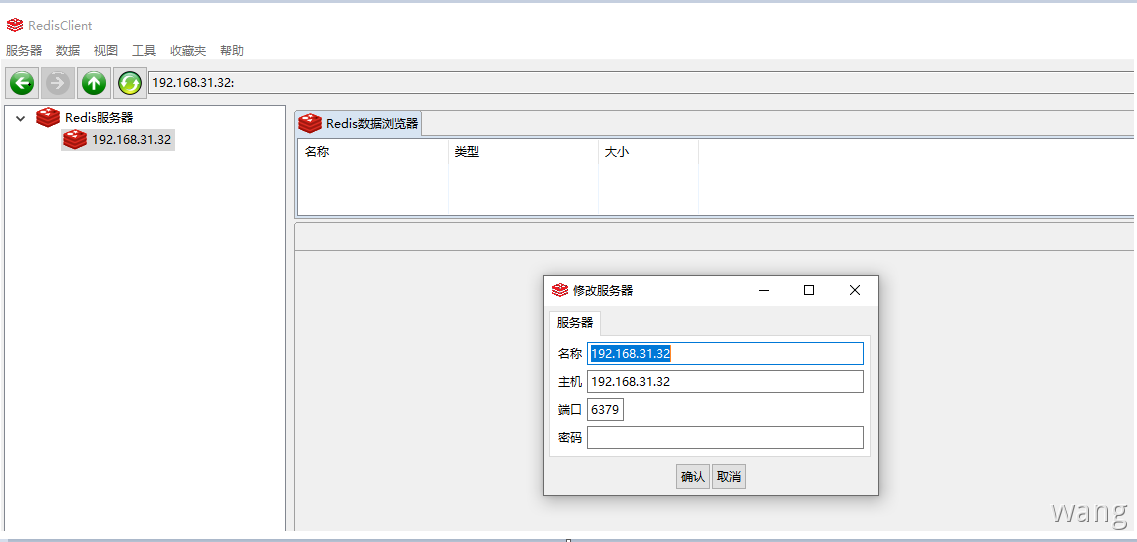
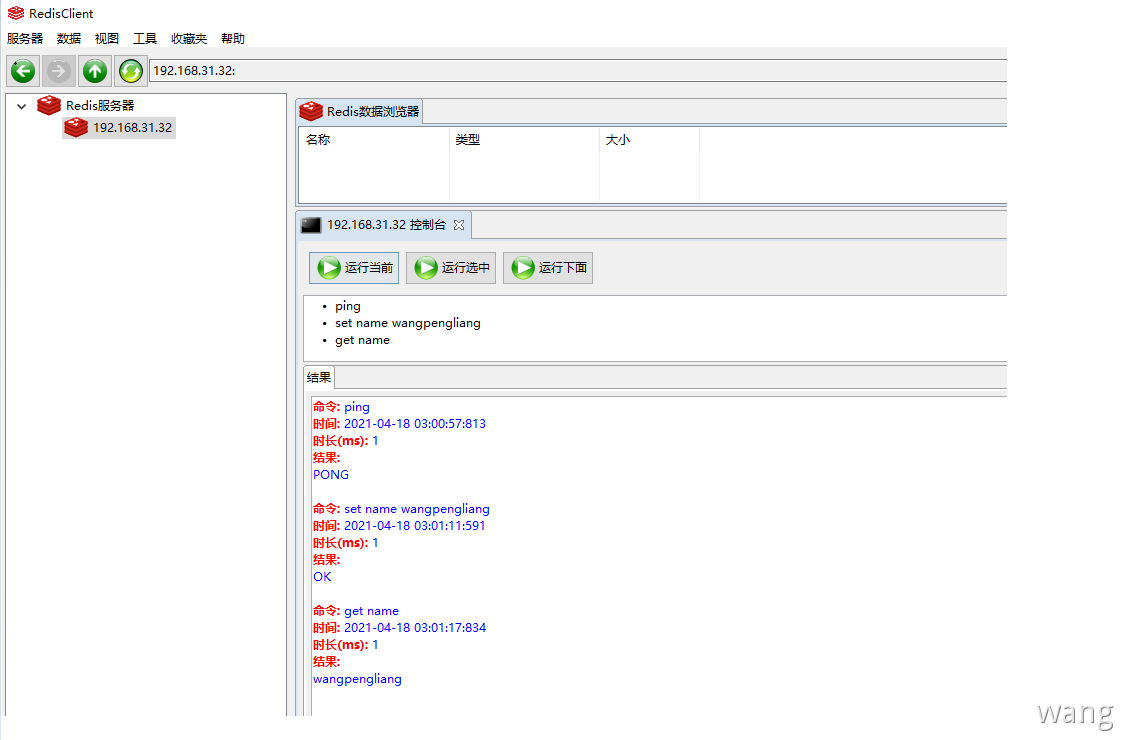
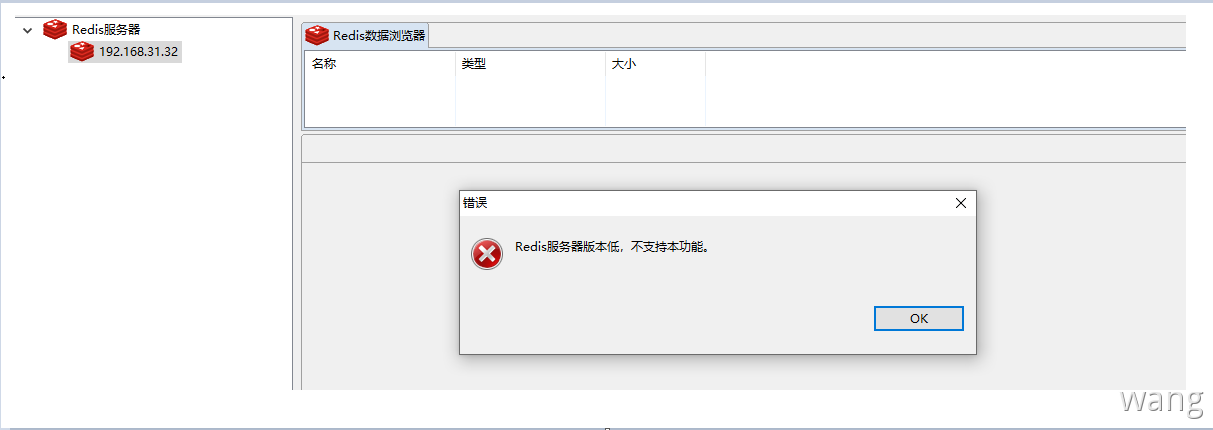
本机安装的Redis版本为6.x,RedisClient暂不支持
这里可以使用控制台来测试,只是缺少了可视化的优势,需要自己敲命令